FluxiaIPTV

For your TV, tablet and phone

All your IPTV, in one app.

Channels, movies and series from your playlist, with profiles, a guide and parental control. And you send the playlist from your phone, no typing with the remote.

14-day free trial, no card needed
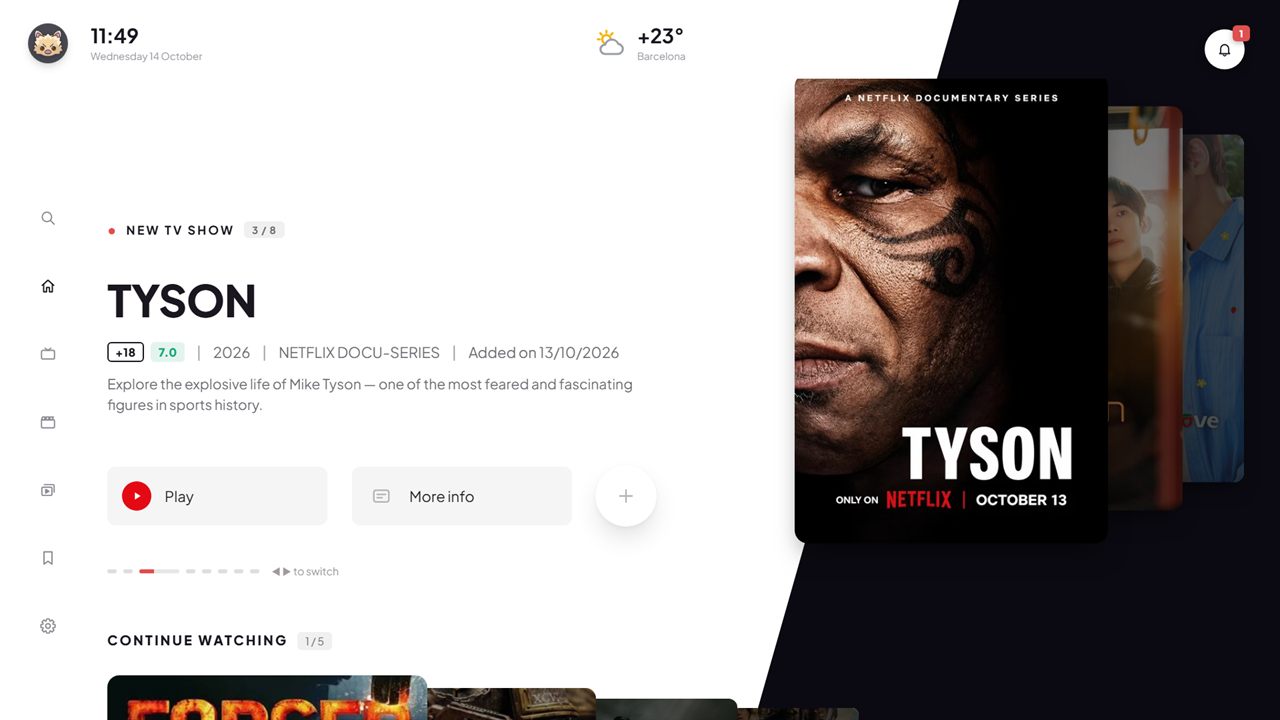
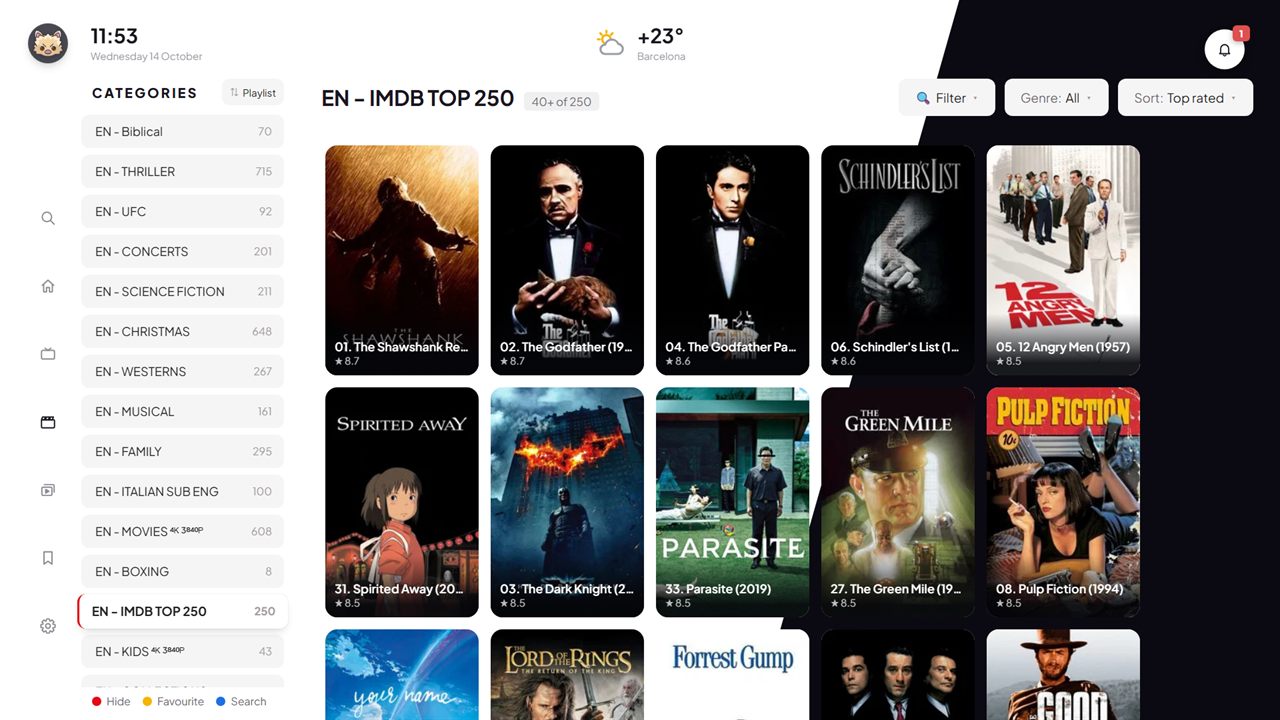
Fluxia IPTV home screen on a TV
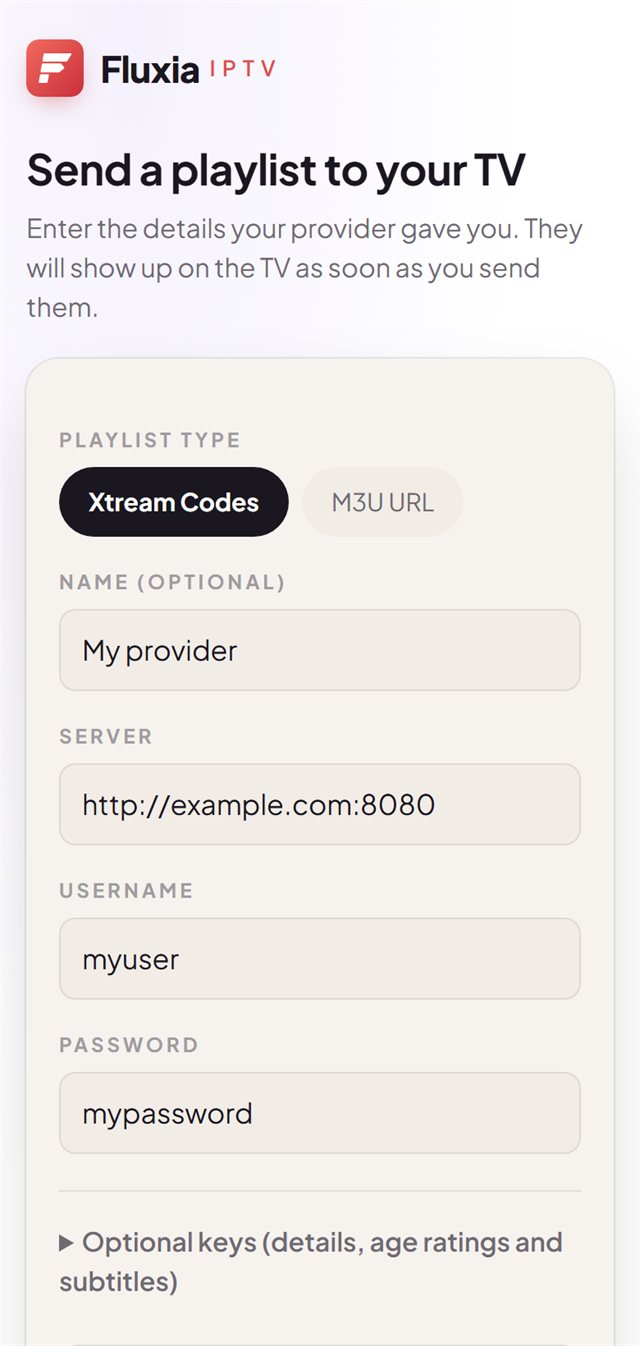
The page that opens on your phone when you scan the QR code

Samsung Tizen · Android TV · Android phone & tablet · Xtream Codes · M3U

Profiles

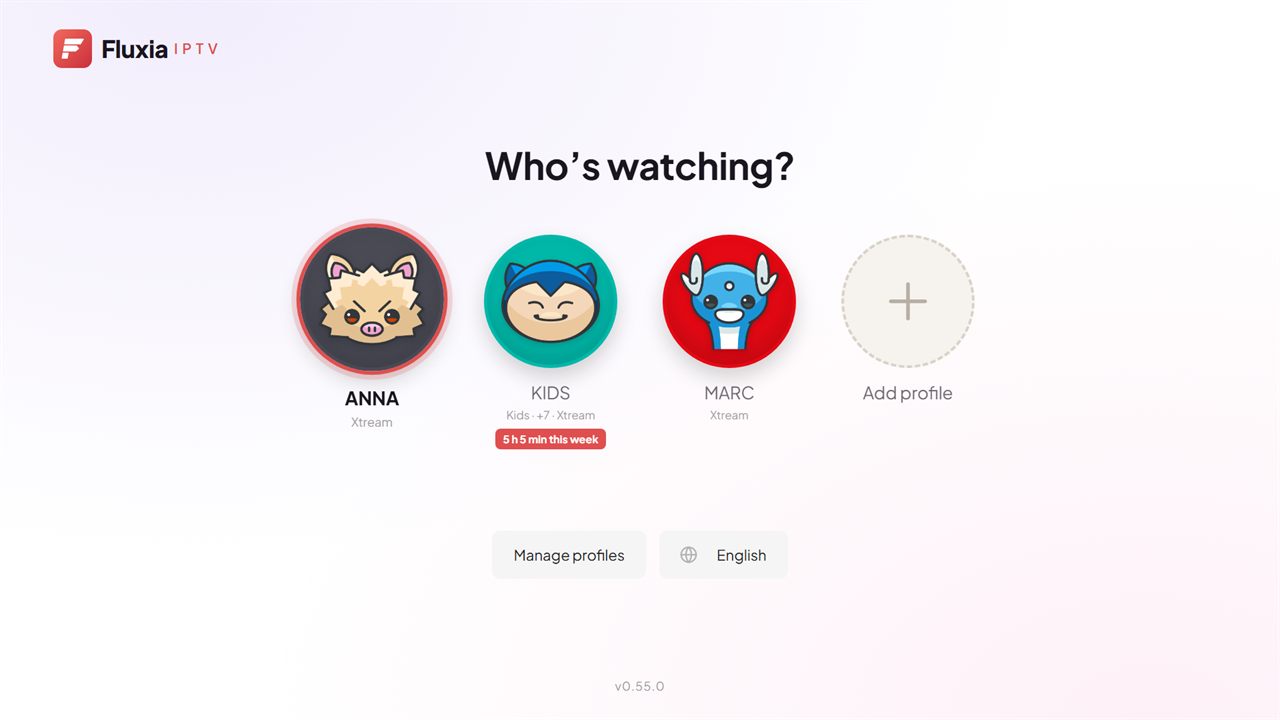
Profiles for the whole family

Each profile with its own playlist, favourites, "continue watching", language and an optional PIN.

Profiles for the whole family

Movies & series

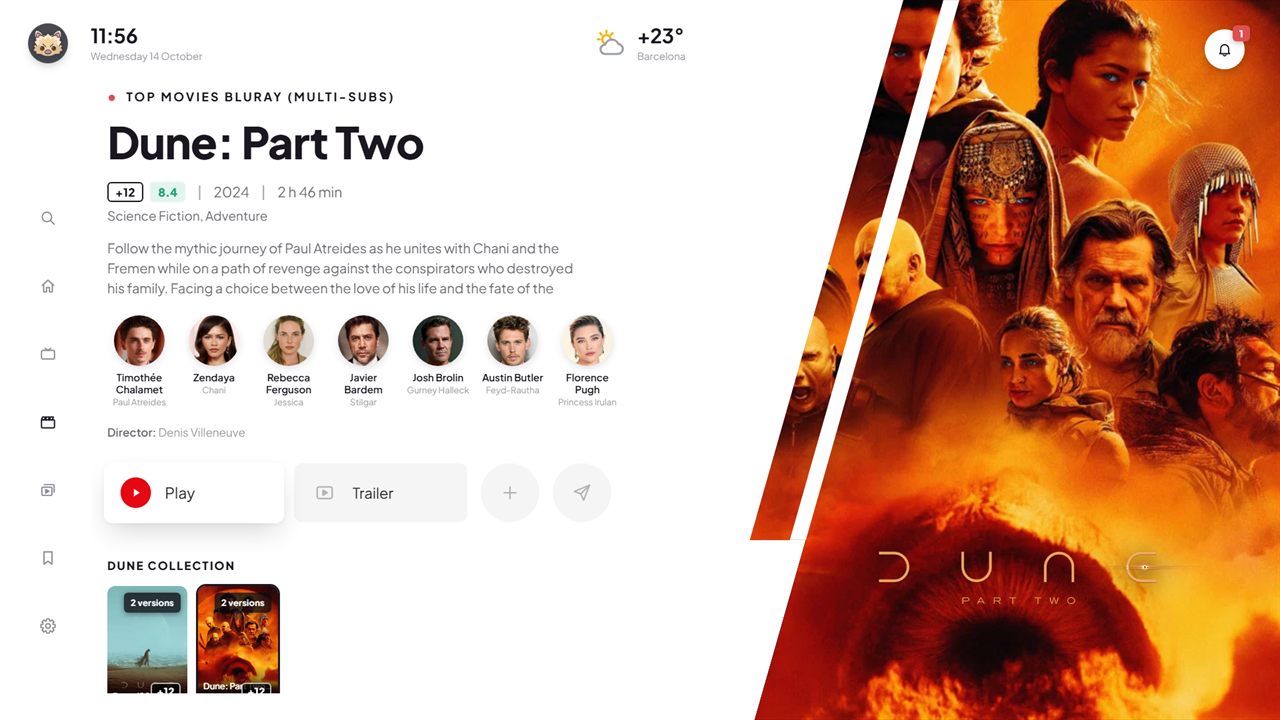
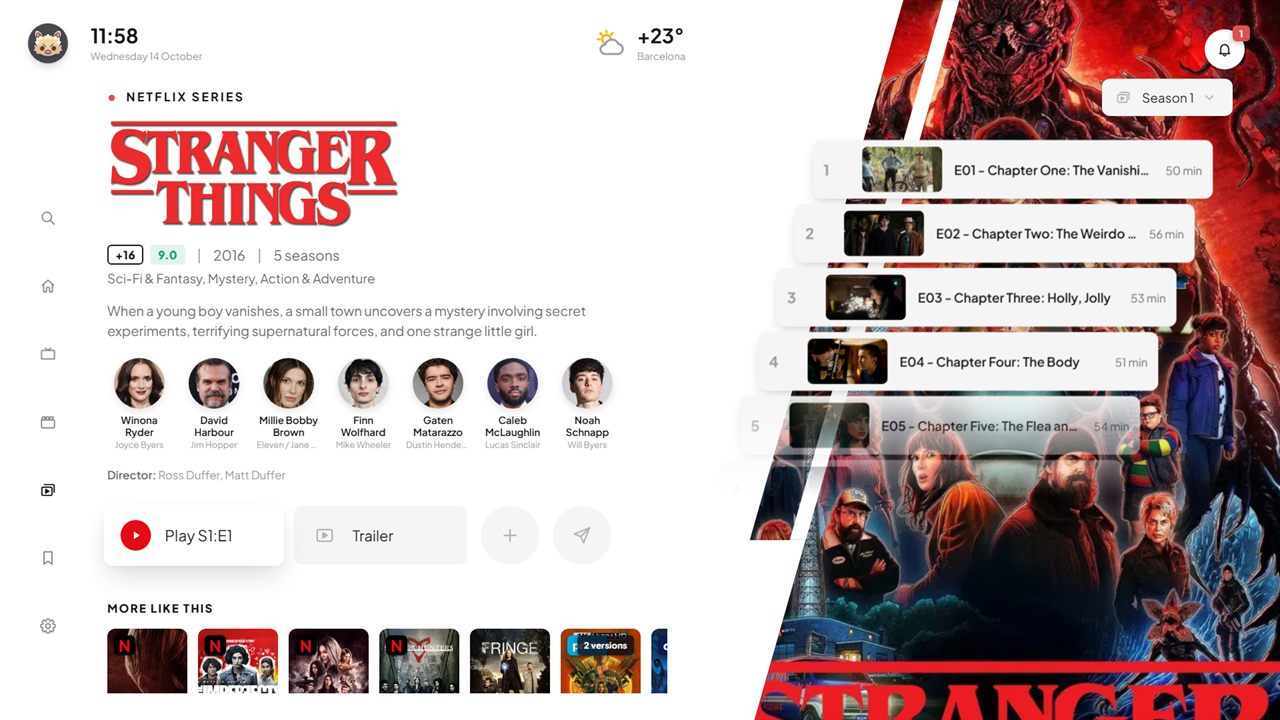
Movies and series

Details with synopsis, cast and rating, subtitles, seasons and automatic next episode. Pick up where you left off.

Movies and series

Live TV

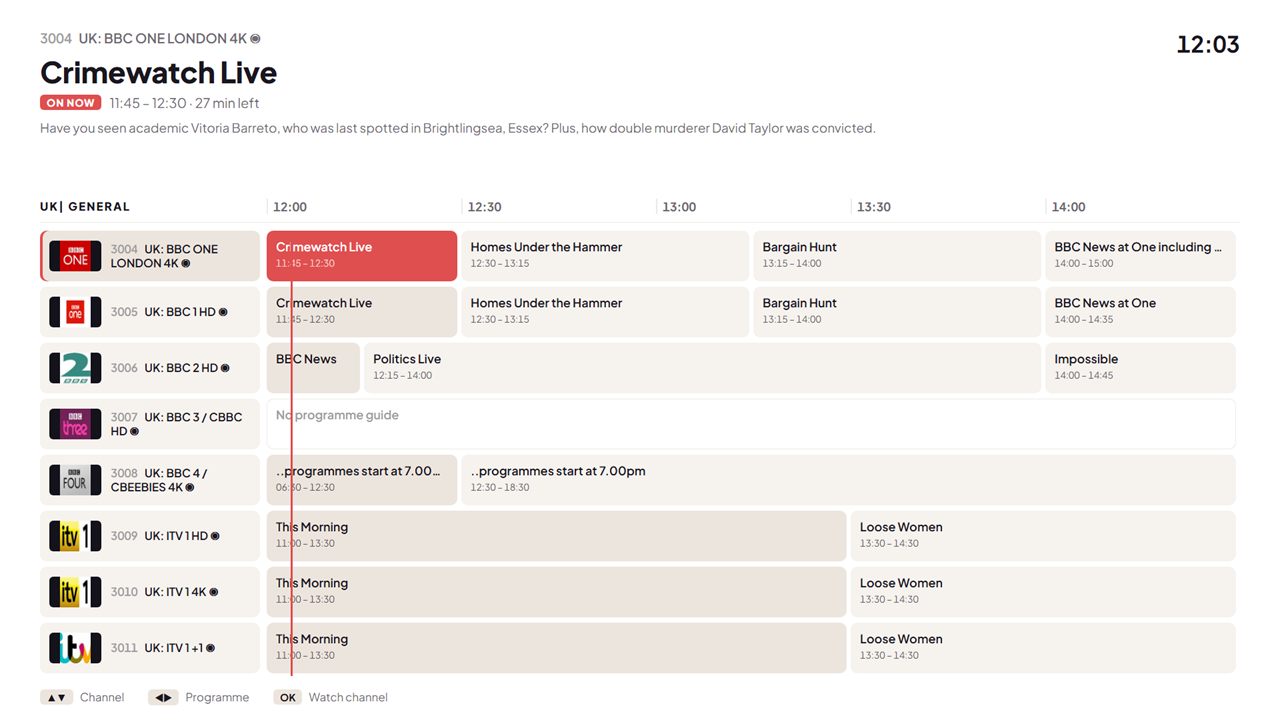
Live TV with a guide

Channel logos, numbers and what is on right now. Switch with CH+ / CH− or by typing the number.

Live TV with a guide

From your phone

Your playlist from your phone

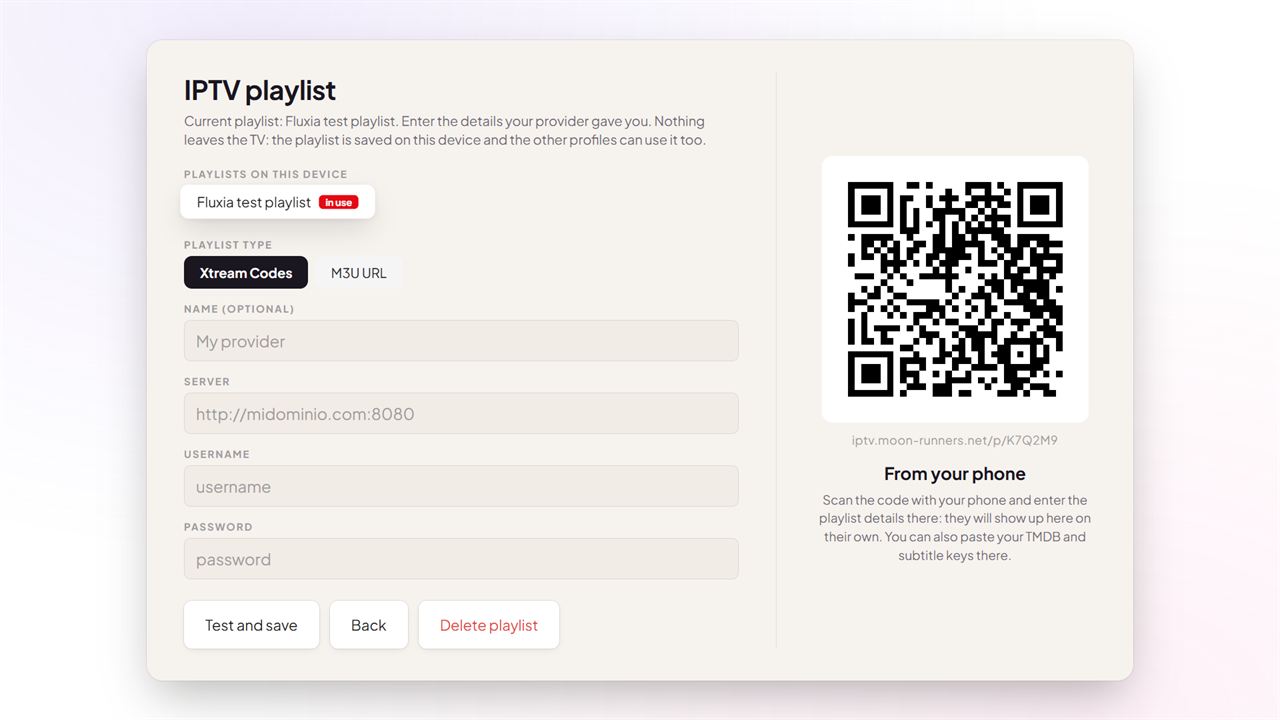
Scan the QR code on the TV and type the details on your phone: no typing with the remote.

Your playlist from your phone

And more

Everything else, taken care of.

A player that stays out of the way

Skip ahead, choose audio and subtitles, and carry on where you left off.

Age-based parental control

Each profile has an age limit, and anything above it does not show up anywhere. You can also hide categories.

On all your devices

Profiles sync across the devices in your group and come back on their own if you reinstall the app.

Your own list

Keep your favourite movies and series within reach.

Quick guides

01

Add your playlist from your phone

  1. On the TV, open Settings › Playlist and catalogue: a QR code appears.
  2. Scan it with your phone, or open the address shown under the code.
  3. Enter the details your provider gave you (Xtream Codes or M3U URL) and tap “Send to TV”.
  4. The TV checks the playlist and loads it on its own.
02

Profiles and parental control

  1. On “Who’s watching?”, choose Manage profiles, then Add profile.
  2. Give it a name and a colour. Each profile keeps its own playlist, favourites and history.
  3. In Settings › Parental control, set an age limit and, if you like, a PIN.
  4. Anything above the limit disappears from the home screen, browsing and search.
03

Activate your licence

  1. Each device starts with a free trial of 14 days.
  2. When it ends, the TV shows a QR code with the device code.
  3. Scan it, tick the box confirming Fluxia is a media player, choose a plan and pay.
  4. Back on the TV, press “I have paid”. Each device needs its own licence.

14-day free trial, no card needed

Pricing

Try it free for 14 days. Then pick a plan and pay with the QR code shown on the TV.

Monthly1,99 € / month
Yearly Save 16%19,99 € / year

Each licence covers one device.

Frequently asked questions

Does it include channels?

No. Fluxia IPTV is a player: you watch the playlist your IPTV provider gives you. We do not sell or offer any content.

Which playlists work?

Xtream Codes panels (server, username and password) and M3U or M3U8 playlists by URL.

Which devices does it work on?

On Samsung TVs (Tizen), on Android TV and Google TV, and on Android phones and tablets.

Can I use it on several devices?

Yes, but each device needs its own licence. If you join several to the same group (up to 5), they share profiles and playlists.

What happens when the trial ends?

The TV shows a QR code to pay from your phone. As soon as the payment is confirmed, everything carries on as you left it.

What do you do with my data?

The playlist details you send from your phone are only kept until the TV picks them up. You will find all the details in the privacy policy. Privacy

For your TV, tablet and phone

Start watching in minutes.